
Styles > Text Styles & Section Ornaments
<PubML>™ eBooks offer a range of default text styles. These default styles should work well for most eBook applications. Change them only if you have special needs. Otherwise, create custom styles to suit your purposes.
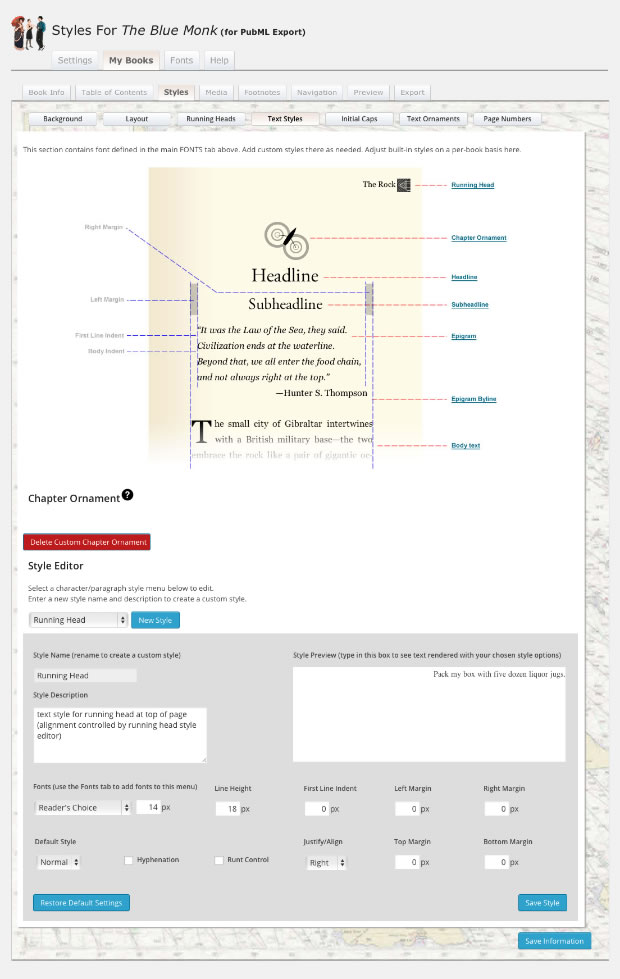
At the top of the Text Styles screen is a visual guide to styled page components. Blue links to the right of the "page" image are shortcuts to load those styles into the style editor at the bottom of the page.
Section Ornaments
You can also load and preview a custom chapter ornament as shown in the example.
Note: If you add chapter ornaments to your book's sections but don't upload a custom ornament, your book will appear with a default ornamant containing the words, "section ornament."
Note: Upload a transparent PNG file to ensure your section ornament does not appear in a white box on top of your paper color and texture.
Text Styles
Choose a style from one of the shortcut links or from the dropdown menu above the style editor. Adjust and preview existing styles or create new ones.
Note: Fonts from your Fonts Library will appear as styling choices along with an option called "Reader's Choice." If you want a style to change as the reader chooses typefaces in your <PubML>™ eBook's Settings panel, set that style's font to "Reader's Choice." For other styles like "handwriting," specify a handwriting font like Comic Sans (and please don't use this typeface for any other application!)
Note: Custom styles and some default styles will appear in the Styles dropdown menu of the section editor. Others, like the "Running Heads" style are purposely omitted from the menu (you wouldn't select text in the body of your page and apply the "running heads" style to it, but you still might want to modify its style in the Text Style Editor).